



If you use WordPress, you already have a powerful tool at your fingertips. Instead of paying for expensive monthly subscriptions for project management software, you can now manage everything inside your own website.
FluentBoards is a tool designed to help you do exactly that. It is a project management plugin that lives right in your WordPress dashboard. You do not need to log into a different website to see your tasks. You do not need to pay per user. It is built to keep your work simple, organized, and all in one place.
What is FluentBoards?
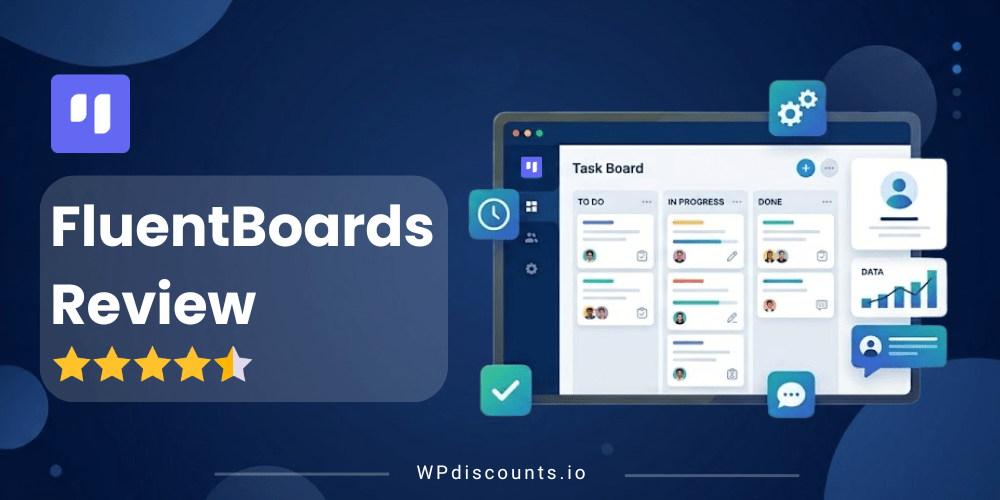
FluentBoards is a plugin that turns your WordPress site into a hub for your team. It uses a visual system called a Kanban board. If you have ever used sticky notes on a wall to track a project, you already know how this works. You create columns for different stages of work, such as “To Do,” “In Progress,” and “Done.” You then create cards for each task. You can move these cards from one column to another as you finish your work.
Who Built FluentBoards?
FluentBoards is developed by WPManageNinja, the team behind popular WordPress plugins such as Fluent Forms, FluentCRM, Ninja Tables, and Fluent Support.
WPManageNinja has built a strong reputation in the WordPress ecosystem for creating performance-focused plugins with modern UI and strong documentation. This gives FluentBoards additional credibility compared to newer standalone tools.
Key Features for Business Owners
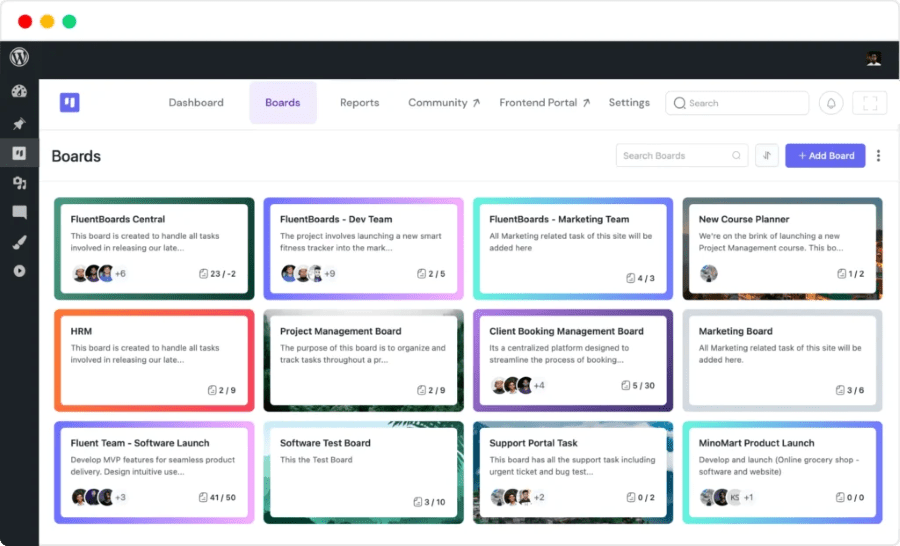
FluentBoards comes with many features that help small business owners stay on top of their goals. Here are the most important ones and why they matter for your daily routine.
Smooth Project Management
FluentBoards helps you manage every project in an organized way. This ensures that no detail is missed and every task moves toward success. It provides a clear structure so you can focus on doing the work rather than just planning it.
Visual Navigation and Goal Tracking
The interface is designed to be clean and colorful. This removes the boredom of looking at simple lists. You can set specific goals, check your progress with stats, and hit your targets with high precision. This visual approach makes it easy to see where your business stands at any moment.
Better Team Collaboration
This plugin keeps your entire team focused on the same objectives. It encourages transparency, meaning everyone knows what is happening. By working together in one space, your team can achieve success faster.
Unlimited Projects and Tasks
One of the best parts of this tool is that it gives you complete freedom. You can create as many projects as you need without worrying about extra costs. You can also add unlimited tasks and split them into smaller subtasks to make big projects feel manageable.
Infinite Assignees
You can bring your whole team on board without any limits. You can add as many people as you want to a task. This supercharges your workflow and ensures maximum efficiency for your workforce.
Multi-stage Workflows and Drag-and-Drop
You can slice your projects into different stages. This shows each step of a process clearly. The drag-and-drop interface allows you to move cards between these stages effortlessly. This keeps your board up-to-date with very little effort.
CRM Contact Integration
You can give your team instant access to client information by linking tasks to CRM contacts. This ensures that all work is centered around the needs of your customers. It is a great way to improve client satisfaction.
FluentRoadmap and Less Admin Work
The roadmap feature helps you look into the future of your projects. It ensures everyone is involved and everything is transparent. By automating many parts of project management, you can say goodbye to boring administrative tasks and manage your people better.
Easy Migration and Template Creation
If you already use tools like Trello or Asana, you can move your data to FluentBoards quickly with easy import options. You can also turn your favorite boards or cards into templates. This allows you to recreate successful workflows in seconds, which cuts down on operation time.
Frontend Portal
You do not have to stay in the WordPress dashboard to manage your work. You can use dynamic shortcodes to show your boards anywhere on your website. This frontend portal makes it easy to manage your projects from the front of your site.
FluentBoards Pricing (Free vs Pro)
FluentBoards offers two main versions. There is a free version available on the WordPress plugin store and a Pro version for users who need more power.
Get 20% OFF on FluentBoards
WPdiscounts
The Free Version
The free version is surprisingly generous. It allows you to create boards, add tasks, and use the Kanban view. For many solopreneurs or very small teams, the free version might be all you ever need. It does not limit the number of projects you can create. This is a great way to test the tool to see if it fits your style before you spend any money. Get free FluentBoards here.
The Pro Version (with Lifetime Deal)
The Pro version adds several advanced features that help with efficiency and reporting. Here is what you get when you upgrade:
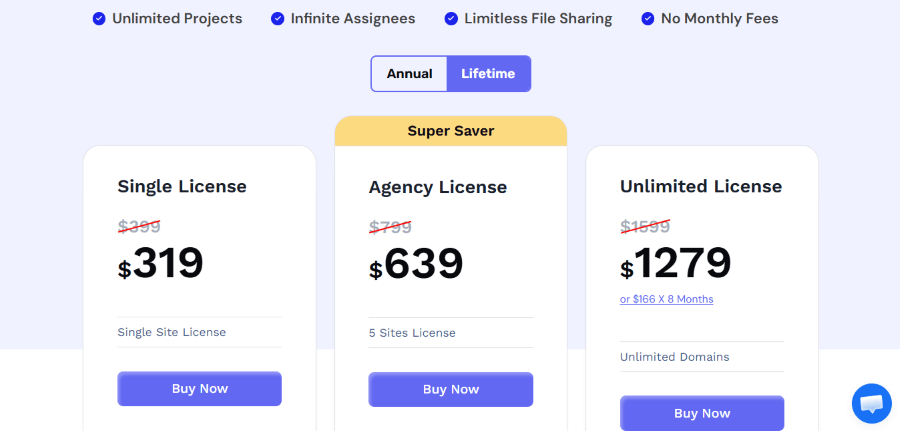
Annual Pricing:
- Single License: $149/year
- Agency License: $349/year
- Unlimited License: $699/year
Lifetime Plan:
- Single License: $399/year
- Agency License: $799/year
- Unlimited License: $1599/year
Features Include:
- Priority Support: You get help faster if you run into a problem.
- Advanced Reports: You can see charts that show how your team is performing over time.
- Custom Fields: You can add your own labels or data points to tasks.
- Time Tracking: You can see how long each task takes to complete.
- Automations: You can create rules to move tasks automatically when certain things happen.
Is FluentBoards Lifetime Deal Worth It?
The Lifetime Deal starts at just $399.
How To Install FluentBoards
Since FluentBoards comes with a free version that is available on WordPress.org, you can directly install it from Plugins > Add New Plugin > Search FluentBoards > Install.
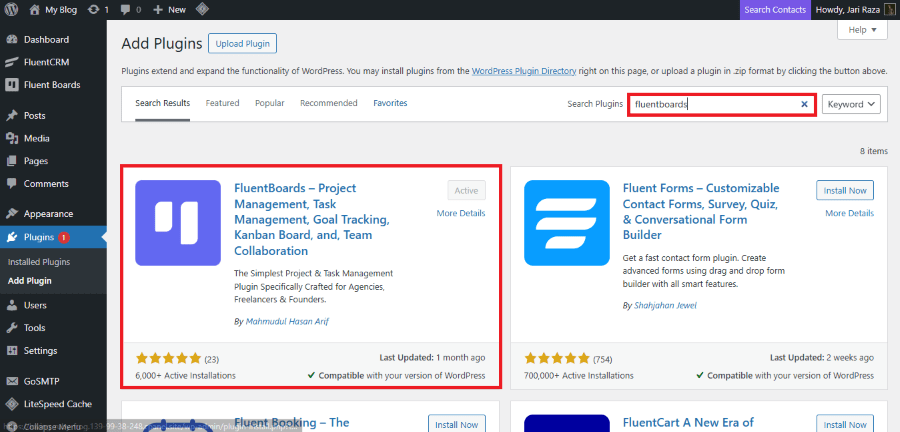
After installation, you will see “FluentBoards” in the left menu inside your WP-admin dashboard. The first time you click it, the plugin will initialize a guided onboarding.
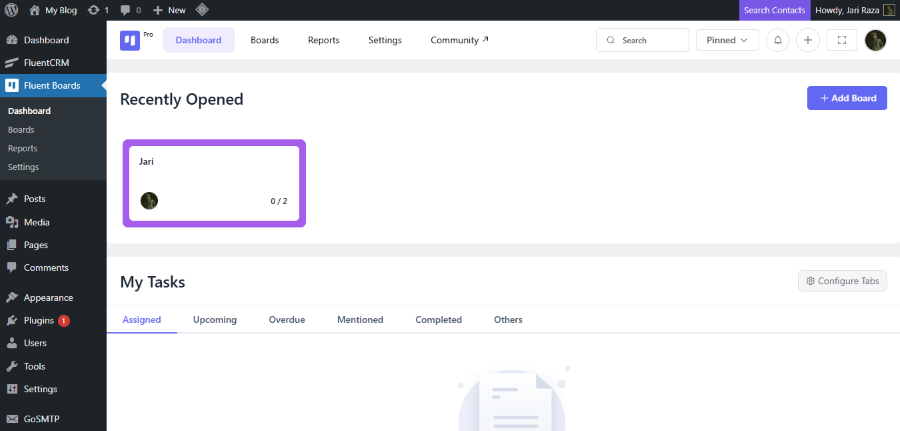
Creating and Managing Tasks in FluentBoards
Adding New Task
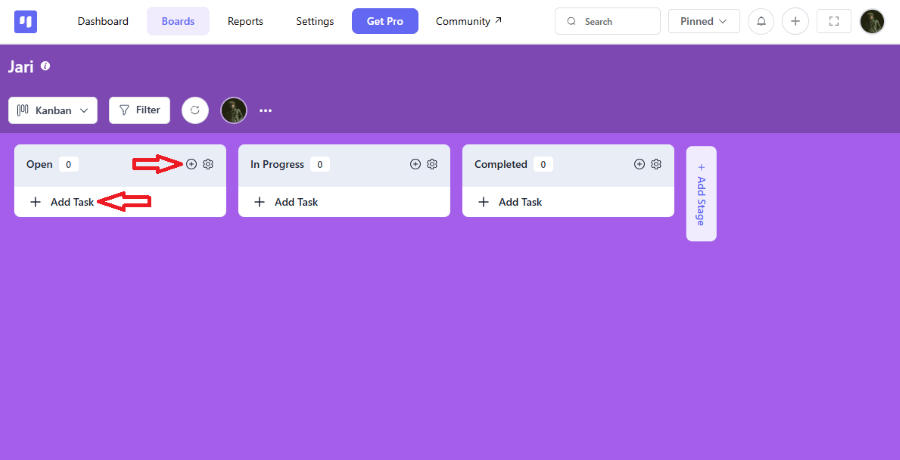
Just head over to the board where you want to add the task. Then, you can either click on the Add Task button within the stages or click on the Plus icon button at the top of the stage to add a task.
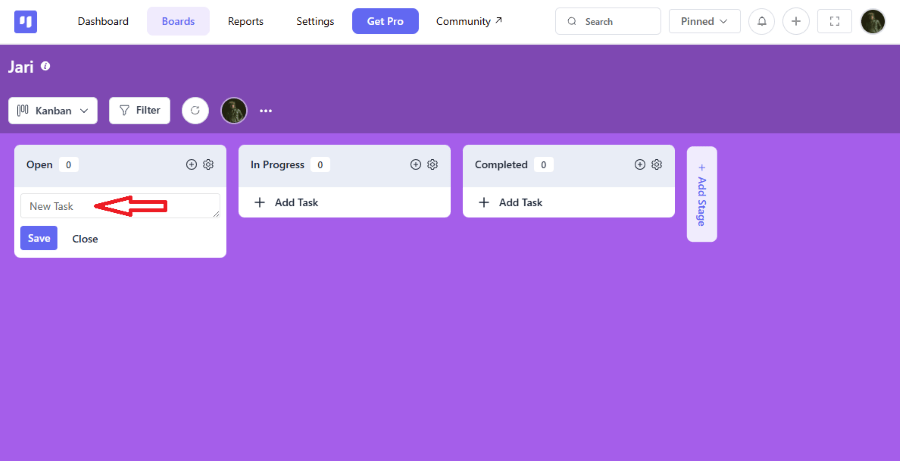
Give a Title for your Task and click on the Save button then your task will be added to your board stage.
Once a task is created, click on the card to see all your management options. These features help you keep the work organized and on schedule.
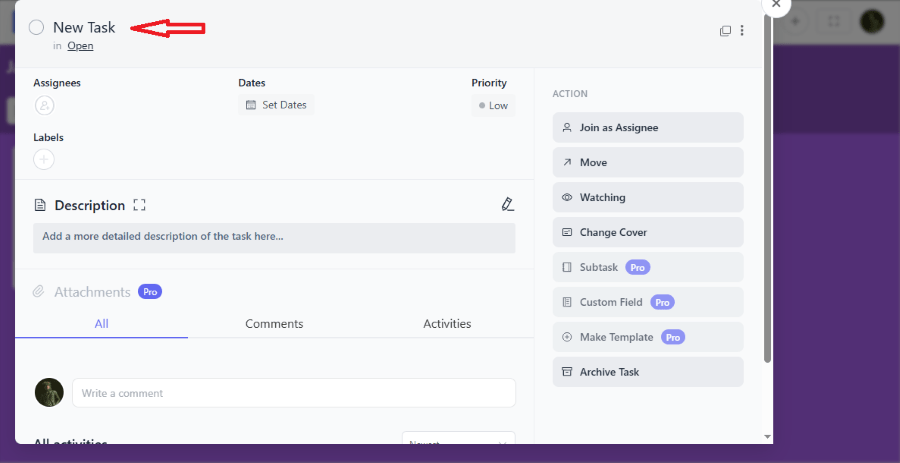
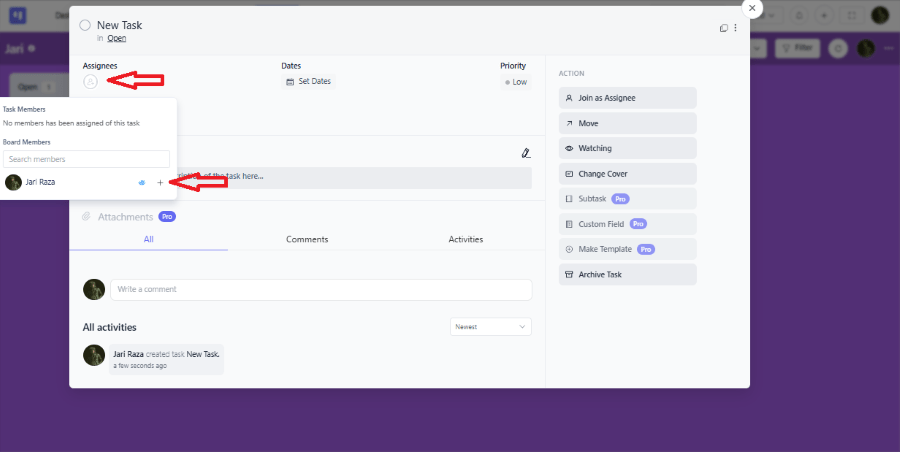
- Assignees: You need to decide who is doing the work. Click the Assignee Add button to see a list of your team members. Click the Plus icon next to a name to assign that person to the task.
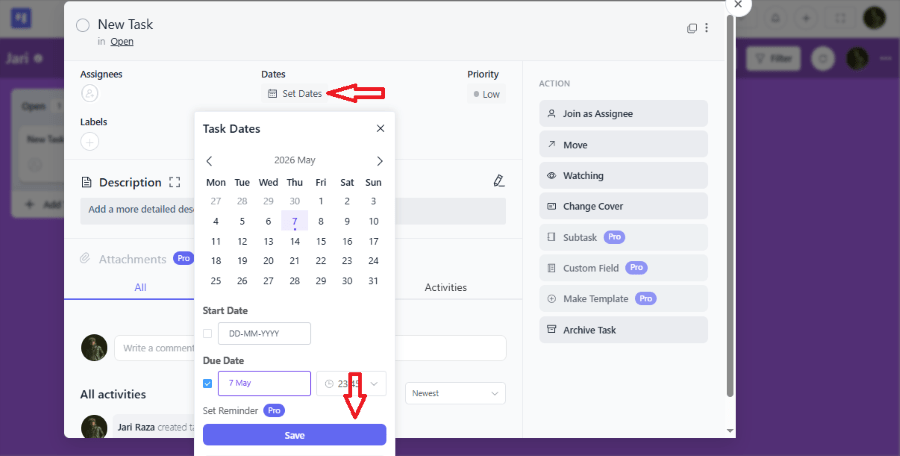
- Due Date: Setting deadlines is easy. Click Set Dates to choose a start date and a due date. You can even pick a specific time. Click Save to lock in the schedule.
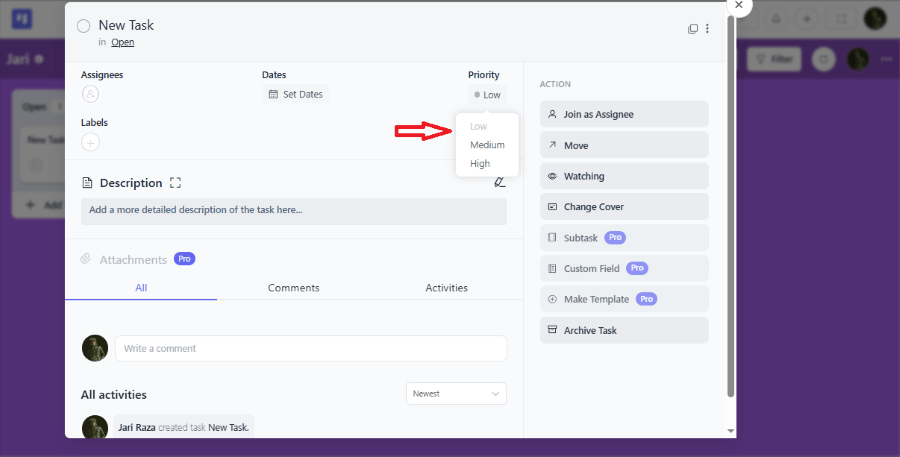
- Priority: Not all tasks are equal. Use the Priority button to mark a job as High, Medium, or Low. This tells your team what to focus on first.
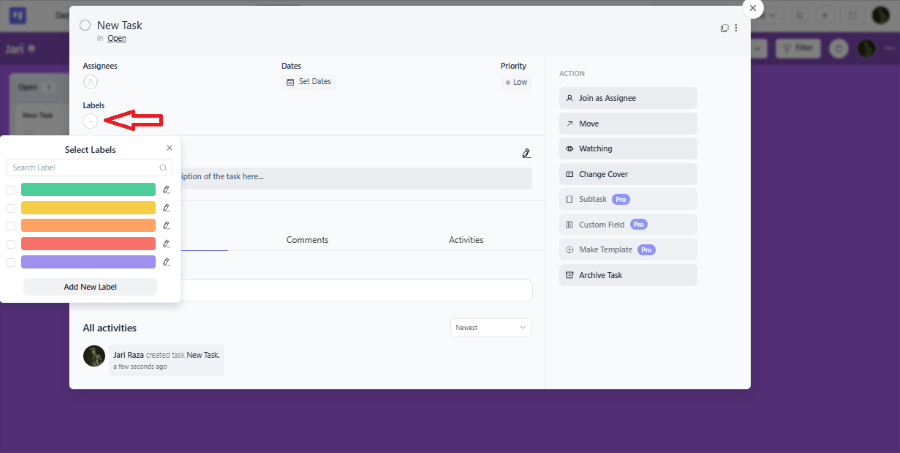
- Labels: Labels help you categorize tasks by color. Click the Plus icon under the Label section. You can create a new label, name it, and pick a custom color. This makes your board look organized and professional.
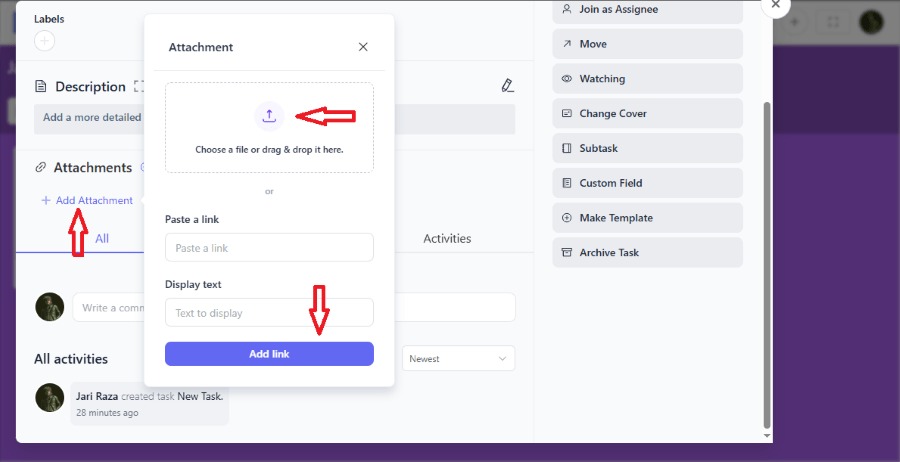
If you have documents or spreadsheets related to the work, use the Add Attachment button. You can upload files, add website links, or paste text notes.
After adding your attachment details, click the Add Link button to save it to the task.
Adding Descriptions and Files
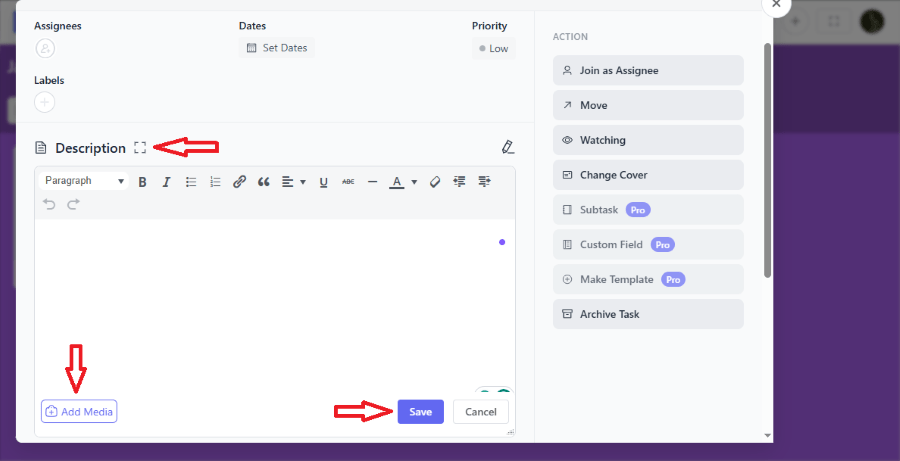
Sometimes a task title is not enough. You can add a full Description to explain the details. You can even add images or formatted text here. If the task is very complex, click the Fullscreen Icon to expand the text box so you have more room to write. After that, the description option expands tasks to full screen. Then click the Save button to save description.
Breaking Down Work with Subtasks
Big goals can be scary. It is better to break them into smaller pieces called subtasks.
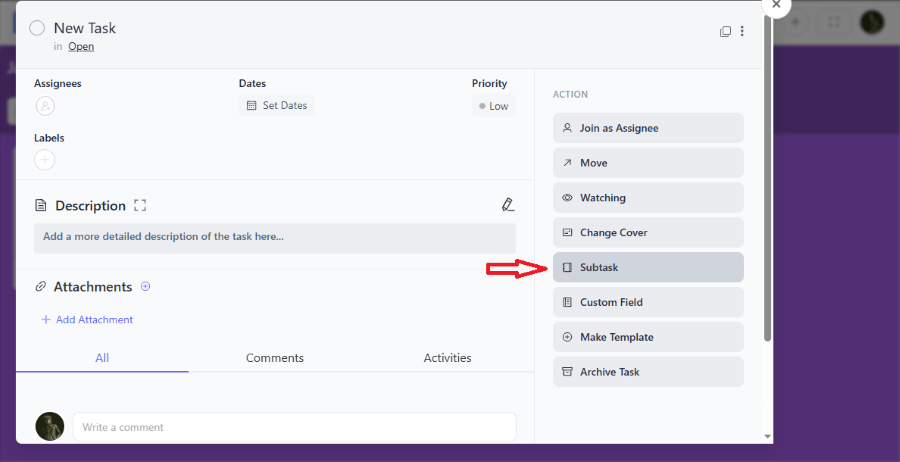
- Open the task details and click the Subtask button in the menu on the right.
- Create a Subtask Group and give it a name.
- Add individual subtasks to this group.
- If a specific subtask needs extra instructions, click the Add Note icon next to it to provide more detail.
Advanced Integration and Organization
FluentBoards works with your other business tools to save you time.
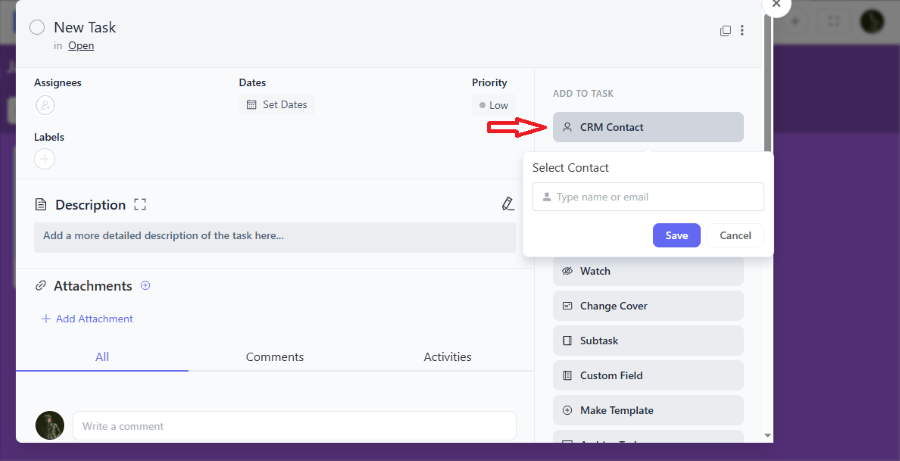
- CRM Contact: You can link a task to a specific customer. Click the CRM Contact button and choose a person from your list. This is great for keeping track of client-specific requests.
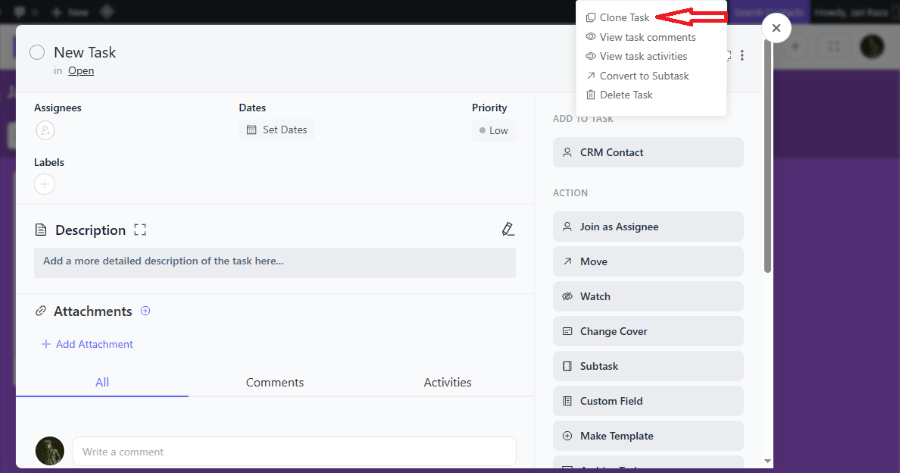
- Task Clone: If you have a task you need to repeat, you do not have to type it again. Click the three dots on the task card and select Clone Task. You can then pick which stage the copy should go into.
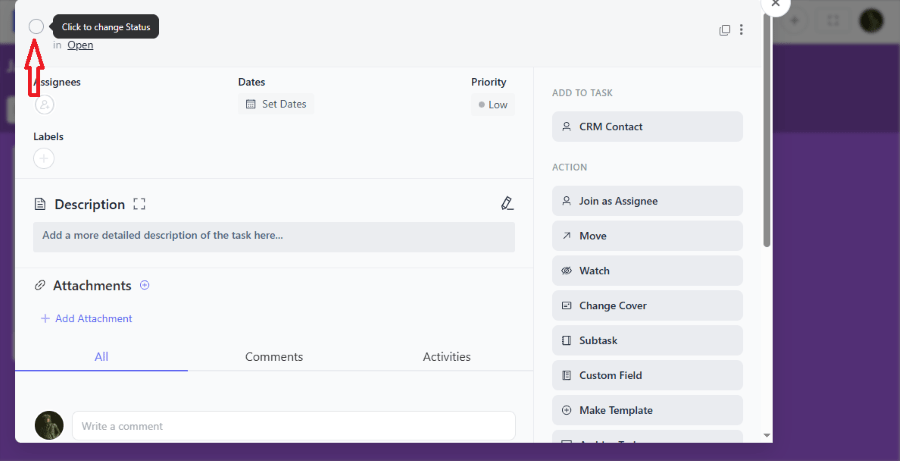
- Mark as Completed: When the work is done, click the Circle icon. This gives you the satisfaction of checking a job off your list.
Our Experience Using FluentBoards
When we first tested FluentBoards, the most striking thing was how fast it felt. Usually, adding a heavy plugin to a WordPress site makes the dashboard feel sluggish. That was not the case here. The interface is clean and looks very modern, which makes it enjoyable to use for long periods.
We found that the learning curve is almost non-existent. Within ten minutes, we had a full board set up with columns, colorful labels, and several tasks. The drag-and-drop feature is smooth and does not glitch, even when moving cards quickly between stages. For a business owner who does not want to spend days reading a manual, this “plug and play” feel is a massive advantage.
FluentBoards vs Trello, Asana, and ClickUpn
Choosing the right project management tool depends on your workflow, team size, and platform preference. While tools like Trello, Asana, and ClickUp dominate the SaaS project management market, FluentBoards offers a different approach by bringing project management directly inside WordPress.
- Cost: Trello and Asana often charge per user. As your team grows, your bill grows. FluentBoards allows unlimited users for one flat yearly price.
- Data Ownership: With ClickUp or Asana, your data lives on their servers. If their service goes down, you cannot access your tasks. With FluentBoards, your data is on your own website. You own it and control it.
- Context Switching: Using external tools means constantly jumping between tabs. FluentBoards keeps you in your WordPress dashboard, which helps you stay focused on your website and your work in one place.
FluentBoards vs Trello
Trello is known for its simple Kanban-style boards and beginner-friendly interface. It works well for lightweight task management and small teams. However, FluentBoards offers more advanced workflow management features directly inside WordPress, making it a better fit for agencies, WooCommerce stores, and WordPress businesses.
FluentBoards vs Asana
Asana is designed for structured project planning, larger teams, and enterprise collaboration. It includes advanced automation, reporting, and workflow management. FluentBoards focuses on simplicity and native WordPress functionality, making it easier to manage projects without leaving the WordPress dashboard.
FluentBoards vs ClickUp
ClickUp is packed with features like dashboards, docs, automation, AI tools, and advanced customization. While ClickUp is powerful, many users find it overwhelming for smaller workflows. FluentBoards delivers a cleaner and more focused experience, especially for WordPress users who want project management without unnecessary complexity.
Do FluentBoards Affect Website Performance?
A common worry for WordPress owners is “plugin bloat.” It is a valid concern because too many plugins can slow down your site for visitors. However, FluentBoards is built with modern coding standards that keep it very lightweight.
The plugin mainly runs in the admin dashboard. This means it does not load heavy scripts on the front end of your website where your customers are browsing. Your page load speeds should stay exactly the same. During our testing, we saw no noticeable impact on server resources. It is designed to be efficient, so you get the benefits of a project manager without the headache of a slow website.
Who Should Use FluentBoards?
This plugin is a perfect fit for specific types of professionals:
- Agencies and Freelancers: If you manage multiple clients, you can give each one their own board. This keeps your work organized and prevents overlapping tasks.
- Content Creators: Bloggers and YouTubers can use it to track their editorial calendars from “Idea” to “Published.”
- Small Business Teams: If you have a team of five or ten people, you can collaborate without the high monthly costs of SaaS tools.
- E-commerce Owners: If you run a store, you can use it to track inventory updates, marketing campaigns, and customer support tasks.
Pros and Cons
Every tool has its strengths and weaknesses. Here is an honest look at what is good and what could be better.
Pros
- Fast and Lightweight: The plugin is very fast. It does not slow down your website.
- Cost-Effective: No per-user fees mean your costs stay predictable as you grow.
- Privacy: All your data stays on your own server. You do not have to trust a third-party company with your sensitive business plans.
- Ecosystem: It works perfectly with other “Fluent” plugins. This creates a very smooth workflow for your whole business.
- Easy Interface: The design is clean and simple. You do not need a manual to understand how to move a task.
Cons
- WordPress Only: You cannot use it on a standalone basis. You must have a WordPress site.
- Mobile App: While it works on mobile browsers, there is no dedicated mobile app like Trello has. This might make it slightly harder to use on the go.
- Newer Tool: Because it is newer than some big competitors, it might have fewer third-party integrations right now. However, the team is adding new features very quickly.
Final Verdict
FluentBoards solves the problem of having your work spread across too many different websites. By keeping your project management inside your dashboard, you save time and reduce stress. The visual boards make it easy to see progress, and the lack of per-user fees makes it a great financial choice.
If you are looking for a way to organize your team without a high monthly cost, this plugin is a top choice. It is simple, reliable, and powerful enough for most small to medium businesses. You can start with the free version today to see how it changes your workday. Most users find that once they start using it, they cannot imagine going back to their old, messy way of working.
Frequently Asked Questions
Is FluentBoards free?
Yes, FluentBoards offers a free version available on WordPress.org.
Is FluentBoards safe for my website?
Yes, it is very safe. It is built by a professional team with a long history of making secure WordPress plugins. Since your data is stored on your own server, you have full control over your information. Just make sure to keep your WordPress site updated.
Is FluentBoards better than Trello?
FluentBoards is better for WordPress users who want project management directly inside their dashboard, while Trello is better for platform-independent collaboration.
Can I move my data from Trello or Asana?
Yes, the plugin includes a migration tool. This tool helps you bring your projects and tasks over from other platforms. This means you do not have to start from scratch if you are switching from a different project manager.
Does FluentBoards have a lifetime deal?
Yes, FluentBoards offers a lifetime pricing option for users who want long-term access without recurring subscription fees.
Do I need to be a coder to use this?
Not at all. FluentBoards is designed for people who are not technical. If you know how to click a mouse and type a sentence, you can use every feature in this plugin. The setup is guided and the interface is very intuitive.
Can agencies use FluentBoards?
Yes, agencies can manage multiple client workflows, editorial pipelines, and team collaboration directly from WordPress.
Does it work with any WordPress theme?
Yes, it works in the WordPress dashboard area. This means it will work perfectly regardless of which theme you are using for the front end of your website. It is compatible with almost all standard WordPress setups.