




WordPress gives website owners a large amount of control over how their sites look and work. According to WordPress.org, themes control the visual presentation of a website and can also affect how site elements behave when visitors interact with them. That flexibility is useful, but building a more advanced frontend can become difficult when a project needs reusable layouts, dynamic content, custom styling, and conditional elements.
This is where CrocoBuilder enters the picture. Developed by Crocoblock, CrocoBuilder is an AI-native frontend builder for WordPress designed around visual editing, reusable components, structured styling, dynamic content, and direct control over the code behind the interface. Instead of asking users to choose between visual building and code control, the builder aims to integrate both into a single workflow.
In this CrocoBuilder review, we will look at what the builder actually does, how its main tools work, who should use it, what happens when you build without a tool like this, and whether the current pricing makes sense for a WordPress project.
What Is CrocoBuilder?

CrocoBuilder is a visual WordPress frontend builder from Crocoblock. It is designed for building pages, templates, reusable components, and dynamic interfaces while keeping the underlying HTML, CSS, and JavaScript accessible to the user.
The main difference between CrocoBuilder and a typical visual page builder is its focus on structured frontend development. Crocoblock describes its output as atomic DOM, where each builder element maps to a DOM node. The builder also provides unified CSS controls for classes, variables, and styles, rather than scattering design settings across unrelated controls.
The builder also adds AI to the development process. Its AI tools can create page structures and reusable components from prompts, while the resulting code and design remain editable. This matters for developers and agencies that want AI to speed up routine work without giving up control over the final website.
CrocoBuilder is currently a paid product. Crocoblock states that there is no free version, although users receive a 30-day money-back guarantee.
CrocoBuilder Key Features
AI-Assisted Website Building
AI is built into the CrocoBuilder workflow rather than being treated as a separate writing assistant.
The AI Assistant can help assemble pages using elements, components, classes, and variables. Crocoblock’s documentation also shows that the AI can work with a project’s existing design system, including CSS variables, class names, colors, and fonts. This allows generated layouts to follow an established visual system instead of starting from unrelated styling choices.
This is useful for professionals who already have a clear website structure but do not want to manually build every section from scratch.
AI Component Creation
The AI Components Builder is one of CrocoBuilder’s more practical features.
It allows users to create reusable components with properties, HTML templates, CSS templates, and custom logic. The AI Assistant can generate those pieces from a prompt, after which the user can manually modify the results.
For example, Crocoblock demonstrates prompts for creating a reusable pricing card. The generated component can include a plan name, price, description, button, and repeater-based plan options. The HTML and CSS can then be edited before the component is saved and reused elsewhere.
This approach can save considerable time on sites that repeatedly use the same design patterns.
Atomic Elements
CrocoBuilder uses a set of smaller building elements rather than relying entirely on large, all-purpose widgets.
Its set of atomic elements includes Block, Grid, SVG, Heading, Text, Link, Image, Nav Menu, Collection, and Query Loop. The idea is to create layouts by combining smaller pieces that can be styled and reused.
The Text element, for example, supports plain text, HTML markup, shortcodes, and dynamic tokens. It also includes a setting to avoid rendering the element when its content is empty. That can be useful for dynamic layouts where some fields may not always contain data.
Unified Style Controls
CrocoBuilder provides global tools for managing the design system of a website.
These include a CSS Classes Manager, Common Styles, CSS Variables Manager, and options to import or export a design system. The purpose is to keep common styles in one place and reuse them throughout the site.
This is especially useful for agencies. Instead of setting the same button, spacing, color, or typography values repeatedly, a developer can create shared classes and variables and apply them across multiple elements.
The import function is also notable. Crocoblock’s own tutorial shows how an existing CSS file can be imported so that its classes, variables, and common styles become available inside the builder.
Theme Builder
CrocoBuilder includes a Theme Builder for managing website templates.
The Theme Builder uses a Tree View to organize different parts of a website, including headers, footers, archives, single posts, shop pages, taxonomies, and other registered content types. Templates can then be assigned to specific sections of the site using display conditions.
This means the builder is not restricted to individual landing pages. A user can use it to manage broader parts of the WordPress frontend from a central interface.
Display Conditions
Display Conditions are built directly into CrocoBuilder.
They allow an element to appear or disappear depending on specific rules. Those rules can use post data, user information, custom fields, queries, device conditions, user roles, and other values. Users can choose between showing an element when conditions are met or hiding it when they are met.
For example, a website could show a member-only message to logged-in users while displaying a different call to action to visitors who are not logged in.
That type of conditional behavior is useful on membership sites, directories, content websites, and dynamic business sites.
Query Builder and Dynamic Content
CrocoBuilder also includes a Query Builder for creating custom queries.
The available query types include Posts, Terms, Users, Comments, and JSON Arrays. Users can configure query arguments through a visual builder, edit raw JSON, and preview the results before using them.
The Query Loop element can then use a query as its data source to display dynamic content.
In Crocoblock’s own landing page tutorial, a Query Loop is used to retrieve the latest posts and display them dynamically. This means the same layout can pull changing WordPress content without manually editing every card.
Interactions
CrocoBuilder includes an Interactions system for adding behavior to elements without writing custom JavaScript for every interaction.
The tool works by combining triggers and actions. Depending on the setup, users can show or hide elements, set or remove attributes, target elements with CSS selectors, add transition effects, and control delays or one-time execution.
For a business site, this can be used for interactive banners, buttons, cards, hover behavior, and other frontend effects.
Responsive Design Controls
Responsive editing is part of CrocoBuilder’s frontend workflow. Crocoblock also highlights a Mobile Breakpoint Manager that allows users to define their own breakpoints, name them, set viewport widths, and control content display for each breakpoint.
This is helpful when a standard desktop and mobile setup is not enough for a particular project.
MCP Connection
CrocoBuilder is also moving into AI agent workflows through MCP.
Crocoblock says its MCP connection can allow AI agents such as Claude or Codex to manage site structure, queries, components, styles, and pages directly through the builder. This is aimed at more advanced development workflows where AI can interact with the project rather than simply provide suggestions in a chat window.
The feature is particularly relevant to developers experimenting with AI-assisted website development.
GitHub Versioning
Crocoblock lists GitHub Versioning as an upcoming feature. The planned functionality is designed to sync builder content with a GitHub repository, introducing version control into the frontend workflow. Because Crocoblock currently marks this feature as coming soon, it should not be treated as part of the fully available feature set yet.
How to Build a WordPress Page With CrocoBuilder
The easiest way to understand CrocoBuilder is to follow a basic workflow. Crocoblock provides an official tutorial that builds a complete landing page using the builder’s major tools.
Step 1: Prepare Your Design System
Before building the page, prepare your CSS classes, variables, and common styles.
If a design system already exists, CrocoBuilder can import a prepared CSS file. From the builder workflow, use the Import Design System option, select the CSS file, allow the builder to parse it, and import the available styling resources.
This gives your pages a common visual foundation.
It is better to prepare these styles before building many sections because reusable classes reduce repetitive work later.
Step 2: Create the Header
Go to WordPress Dashboard > CrocoBuilder > Theme Builder.
The Theme Builder provides a visual tree of the site’s structure. From here, create a template for the area you want to control. Crocoblock’s tutorial demonstrates creating a header and overriding the theme header for the template.
Inside the editor, begin with a Block element. Add another Block inside it to act as the content container, then apply the imported CSS class.
You can then add a Heading element and assign the necessary typography settings or imported classes.
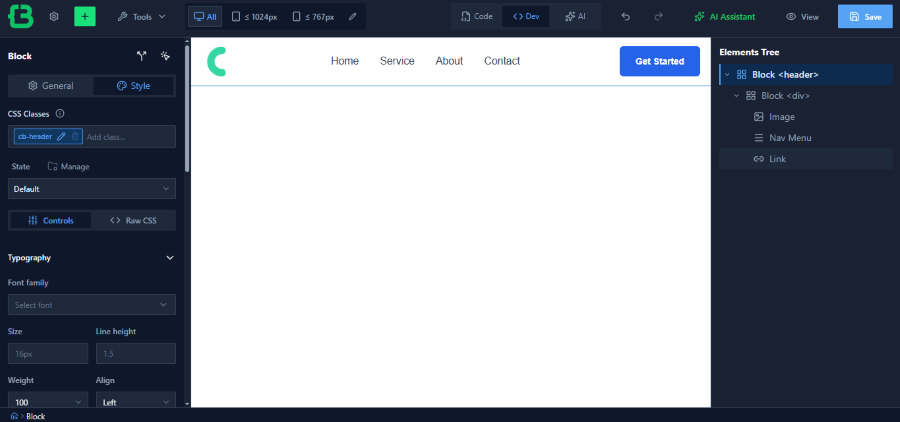
Save the template when the header is complete.

Step 3: Create the Main Hero Section
Create a new WordPress page and open it in CrocoBuilder.
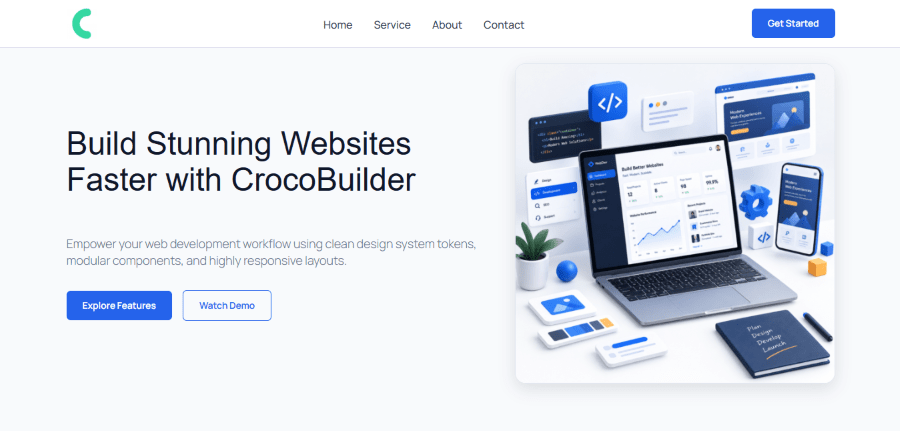
For the hero section, add a Block element and set its tag to Section. Add another Block as the main container and use Flex settings to control the layout. You can then insert a heading, text, buttons, and an image.
Using reusable classes here is important. A button does not need a completely new set of styles every time you add one. Assign the existing button class instead.
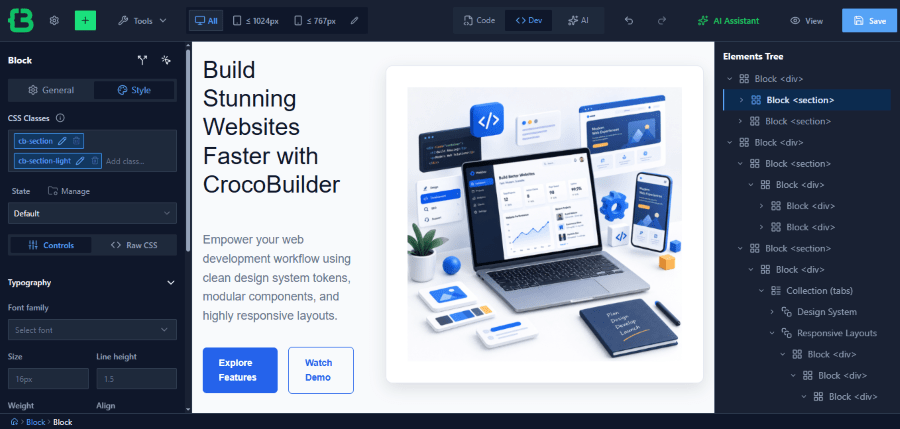
You can also place an SVG inside a Link element when a button requires an icon. Crocoblock demonstrates this approach in its page-building tutorial.
Step 4: Build Interactive Content
CrocoBuilder can turn repeated content into a reusable structure.
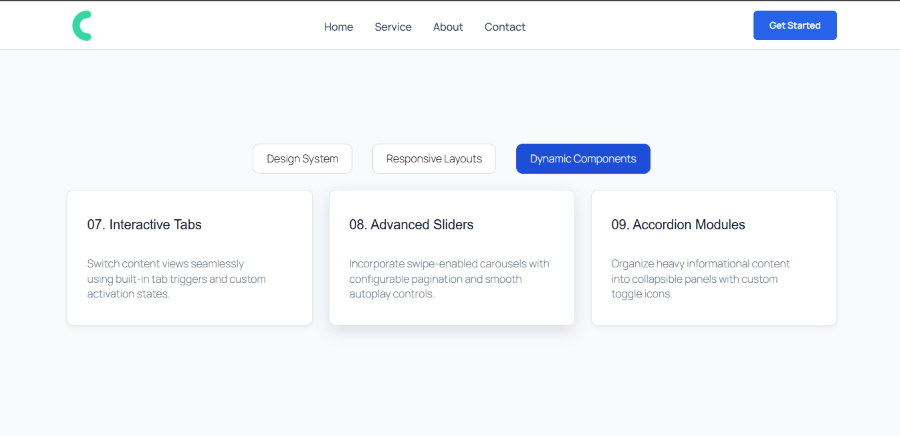
For example, use the Collection element for a tabbed section. Set the collection behavior to Tabs and select how the tabs should be activated. You can then create multiple items while using the same structure for each item.
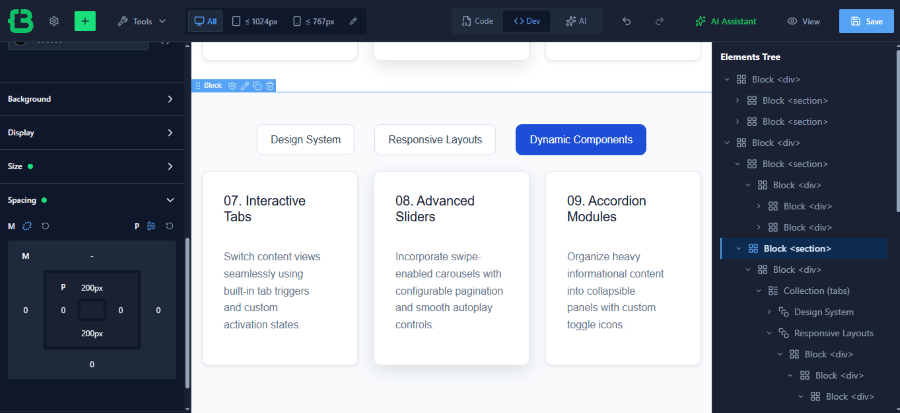
This is useful for feature sections, product categories, service details, or any layout where the content changes while the surrounding design stays the same.
Step 5: Add Dynamic Posts
To display changing WordPress content, create a query and connect it to the Query Loop element.
The Query Builder lets you configure the data source, while the Query Loop handles the visual presentation. In Crocoblock’s example, the query retrieves recent posts and the loop displays them on the page.
This is more practical than creating a separate static card whenever a new post is published.
Step 6: Create the Footer
Go to WordPress Dashboard > CrocoBuilder > Theme Builder and open the page template where you created the header.
In the template tree, find Footer and click the + icon next to it. Select Create Template, give the footer a name, and open it in the CrocoBuilder editor.
Inside the editor, add a Block element as the main footer container. Add another Block inside it to hold the footer content, then apply the imported CSS class to maintain the same width and spacing used throughout the design.
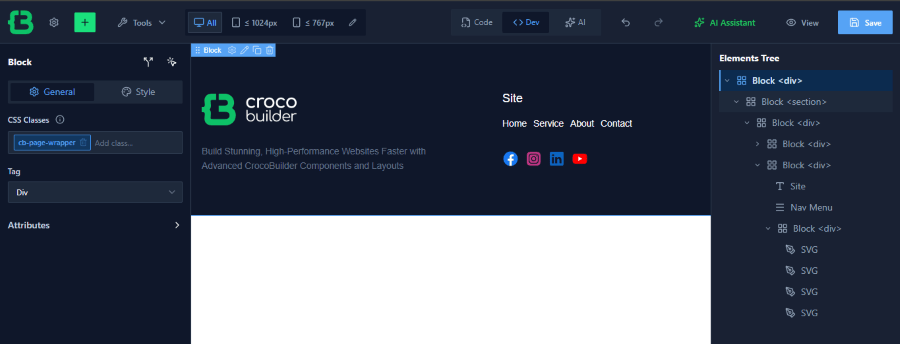
You can divide the footer into multiple sections using additional Block elements. Add your logo, text, navigation links, social links, or other relevant content using CrocoBuilder’s available elements.
For navigation, add a Nav Menu element and select the menu you want to display. You can also add a Text element for copyright information or a Link element for pages such as Privacy Policy and Terms of Service.

Use the existing CSS classes from your design system to keep the footer styling consistent with the rest of the website. Adjust the spacing, alignment, typography, and responsive settings as needed.
Save the template when the footer is complete. It will then be displayed according to the conditions assigned to the page template.
CrocoBuilder Pricing
Crocoblock currently lists several ways to get access to CrocoBuilder.
| Plan | Price | Sites | What You Get |
| CrocoBuilder | $79/year | 1 site | AI-native builder, AI-assisted workflows, full code and visual control, 1 year of updates, 1 year of Zoom and chat support |
| All-Inclusive Plus | $249/year | 1 site | CrocoBuilder plus 22 JetPlugins, templates, updates and support |
| Lifetime | $999 one time | Unlimited sites | CrocoBuilder, 22 JetPlugins, templates, forever updates and forever Zoom/chat support |
The standalone CrocoBuilder plan is listed at $79 per year for one site. It includes one year of product updates and one year of Zoom and chat support. Crocoblock also provides a 30-day money-back guarantee.
The All-Inclusive Plus plan costs $249 per year for one site and includes CrocoBuilder along with Crocoblock’s wider JetPlugins collection. The Lifetime plan costs $999 once and provides unlimited site usage with forever updates and support.
It is important not to confuse the regular All-Inclusive subscription with All-Inclusive Plus. Crocoblock’s documentation states that CrocoBuilder is included with All-Inclusive Plus and Lifetime subscriptions.
Pricing and promotional offers can change, so buyers should check the official Crocoblock pricing page before purchasing.
What Happens If You Do Not Use CrocoBuilder?
There is nothing inherently wrong with building a WordPress website without CrocoBuilder. WordPress already supports themes, plugins, custom CSS, and different page-building approaches.
The difference becomes more visible as the project grows.
Without a structured visual development system, reusable components may need to be managed through separate tools or recreated manually. Conditional layouts can require custom solutions. Dynamic content may need additional plugins. Styling can become harder to maintain when the same values are duplicated across many sections.
Developers can solve these problems with custom code, separate plugins, and established development frameworks. That can work well when the team has the technical skills and time to maintain the setup.
The tradeoff is workflow complexity.
What Changes When You Use CrocoBuilder?
Using CrocoBuilder brings several of these tasks into one environment.
A developer can build visual layouts, manage global styles, create reusable components, construct templates, work with dynamic queries, add display conditions, and introduce AI-assisted workflows without moving between many unrelated interfaces.
The larger benefit is consistency.
For example, a developer working on a client website can create a design system once and reuse its classes and variables across the site. An agency can create a component once and use it across multiple templates. A dynamic website can use queries to pull content into structured layouts instead of manually updating each section.
That does not mean CrocoBuilder removes the need for technical knowledge. In fact, its strongest features make more sense to users who understand CSS, HTML, dynamic content, and WordPress structure.
Who Should Use CrocoBuilder?
CrocoBuilder is best suited to WordPress developers, agencies, freelancers, and product teams building websites that require more than basic page layouts.
It makes particular sense for projects that use reusable components, dynamic content, custom templates, conditional visibility, or structured design systems.
Agencies may also find value in the builder because reusable components and shared styling can help standardize project delivery.
The tool is less compelling for someone who only needs a simple brochure website with a few static pages. A traditional page builder may be easier for that type of project, particularly for users who do not need dynamic functionality or code-level control.
CrocoBuilder Pros and Cons
Pros
- CrocoBuilder combines visual editing with direct access to HTML, CSS, and JavaScript.
- Its AI Assistant can generate page structures and components while allowing the user to edit the final result.
- The global styling system makes it easier to maintain reusable classes and variables.
- The Theme Builder centralizes templates across the website.
- Display Conditions, Query Builder, Query Loop, and Interactions provide tools for dynamic and interactive interfaces.
- The reusable component system is useful for developers and agencies working on repeatable website structures.
Cons
- CrocoBuilder may be more technical than a basic drag-and-drop page builder.
- There is currently no free version.
- Some planned integrations and features are still under development. Crocoblock lists WooCommerce compatibility improvements, JetEngine integration, a popup builder, ACF integration, and component import/export on its roadmap.
- The standalone plan is limited to one site, so agencies managing several client websites may need a different Crocoblock subscription.
Is CrocoBuilder Worth It?
CrocoBuilder is not trying to be another simple page editor. Its appeal comes from combining visual frontend development, reusable architecture, dynamic content, centralized styling, and AI assistance in one WordPress workflow.
For developers who want more control than a traditional visual builder provides, that makes the product worth considering.
The $79 per year standalone plan is the clearest entry point for a single-site project. Users who already need several Crocoblock plugins may get more value from All-Inclusive Plus at $249 per year, while agencies with long-term multi-site work may consider the $999 Lifetime option.
The main question is not whether CrocoBuilder can create a page. It can. The more important question is whether your project benefits from having reusable components, structured styles, dynamic data, AI-assisted development, and template control in one system.
For a basic WordPress site, that extra control may be unnecessary. For a complex site or an agency workflow, it can become a practical advantage.
Final Verdict
CrocoBuilder takes a different approach to WordPress site building by treating the frontend as a structured system rather than a collection of individual page sections.
Its combination of atomic elements, reusable components, global style tools, Theme Builder, dynamic queries, display conditions, interactions, and AI-assisted development gives experienced WordPress users a broad set of tools in one environment.
The product is most attractive to people who care about maintainability and control as much as they care about speed. Its AI tools can reduce repetitive work, but the real value comes from being able to review, edit, reuse, and manage what the AI produces.
CrocoBuilder is not necessary for every WordPress website. However, for developers and agencies building complex, dynamic, or highly customized projects, it offers a more structured alternative to the usual visual builder workflow.