

Introduction
Moving a WordPress website can look simple from the outside, but a working site includes more than pages and images. WordPress’s own documentation explains that moving a site to another server doesn’t require a fresh WordPress installation, but it recommends backing up the site’s files and database before you start.
A migration plugin handles much of that work inside WordPress. Instead of manually moving files, exporting databases, changing URLs, and checking every part of the new installation, a migration tool can package these tasks into a guided workflow. The right plugin can make a hosting change less stressful, help with site cloning and staging, and provide a recovery copy if something goes wrong.
This guide looks at six of the best WordPress migration plugins for different types of users. The list includes FastMigrate, Duplicator, UpdraftPlus, All-in-One WP Migration, BlogVault, and WPvivid. Their approaches are different, so the right choice depends on how often you migrate sites, how much control you need, and whether backup, staging, cloud storage, or multisite support matters to you.
Top WordPress Migration Plugins
| Plugin | Migration Approach | Backup | Staging | Multisite | Pricing |
| FastMigrate | Direct server-to-server transfer | Yes | No | No | Free |
| Duplicator | Migration wizard, packages, server-to-server import | Yes | Yes, Pro | Yes, Pro | From $79 |
| UpdraftPlus | Backup-based and direct site-to-site migration | Yes | Yes | Yes, Premium | From $70/year |
| All-in-One WP Migration | Export and import using WPRESS packages | Yes | No dedicated staging tool | With extension | Free, paid extensions from $69 |
| BlogVault | Managed off-site migration and staging | Yes | Yes | Yes | From $99/year |
| WPvivid | Export/import, auto migration and backup workflows | Yes | Yes, Pro addon | Yes | From $49/year |
1. FastMigrate
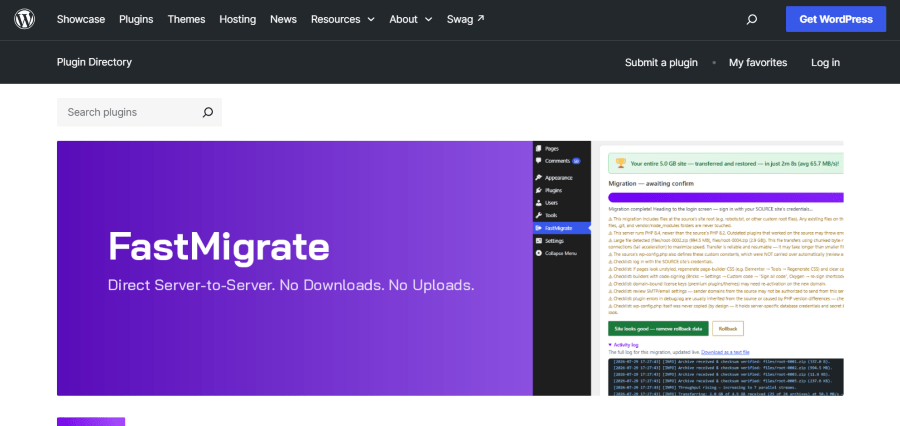
FastMigrate is a WordPress migration plugin built around direct server-to-server transfers. Instead of downloading a backup to your computer and uploading it again, the plugin connects the source and destination sites so the destination server can pull the migration data directly. This avoids using your browser or local disk as the middle point in the transfer.
FastMigrate was created and is maintained by @mustaasamsaleem, the founder of HostWP.io. He built it to solve common website migration problems his team faced while helping HostWP customers. Rather than adding migration features to an existing backup plugin, he built FastMigrate from the ground up. His goal was simple: move large websites as quickly as possible while keeping all database data safe and intact.
The migration process is straightforward. You install the plugin on both sites, prepare the source site, copy the generated key, and start the migration from the destination site. FastMigrate creates checksummed archives containing the database, plugins, themes, uploads, and relevant root files, then imports them to the new server. It also rewrites URLs and keeps the previous site available for rollback until you confirm the migration.
FastMigrate Key Features
- Direct Server-to-Server Transfer: Data moves directly between the two hosts instead of passing through the browser.
- Chunked and Resumable Transfers: The plugin splits migration work into smaller pieces and resumes interrupted transfers, which is useful on restricted shared hosting.
- Full Site Clone: The migration includes the database, custom tables, plugins, themes, uploads, and root files.
- Automatic URL and Path Rewriting: FastMigrate updates URLs, serialized PHP data, and page-builder JSON during the move.
- One-Click Rollback: The previous site stays available until you confirm the migration, so you can roll back if needed.
- Expiring Migration Keys: HMAC-signed keys expire after 24 hours and can also be revoked manually.
FastMigrate Pricing
FastMigrate is completely free. There is no paid license listed for the plugin.
FastMigrate Pros and Cons
Pros
- Direct server-to-server migration
- No manual download and upload cycle
- Resumable transfers
- Built-in rollback
- Free to use
Cons
- No WordPress Multisite support
- Destination server must be able to reach the source for certain migration setups
For Whom FastMigrate Is Built For
FastMigrate is a practical fit for site owners, freelancers, and developers who mainly need to move a single WordPress installation between hosting environments. It is especially useful when the goal is a direct transfer rather than a larger backup and website management system.
2. Duplicator
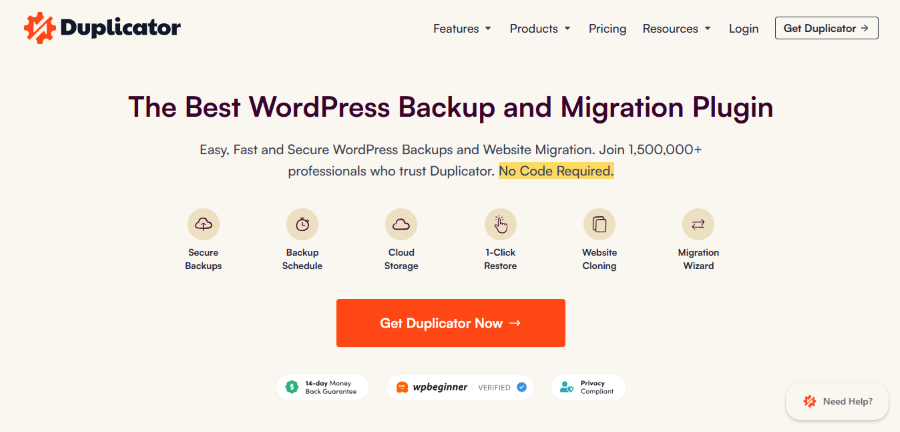
Duplicator is designed for WordPress backups, migrations, cloning, and recovery. Its migration workflow uses guided tools to move websites without requiring manual code work. The product also supports server-to-server importing, drag-and-drop installation, custom search and replace, and cloud-based backup storage.
For more demanding migrations, Duplicator Pro adds tools for larger websites, shared databases, managed hosting environments, and multisite workflows. It can also move a multisite network to a standalone installation or go in the other direction.
Duplicator Key Features
- Migration Wizard: A guided migration process helps move WordPress without requiring manual coding.
- Server-to-Server Import: Backups can be imported from a server or cloud storage without first downloading them to a desktop.
- Custom Search and Replace: Old URLs can be located and replaced during migration.
- Multisite Support: Duplicator Pro supports network backups and migrations, including subsite-to-standalone workflows.
- Recovery Points: The plugin provides one-click restore and rollback from known good recovery points.
- Remote Storage: Backups can be stored with services such as Google Drive, Dropbox, Amazon S3, OneDrive, and FTP or SFTP.
Duplicator Pricing
Duplicator Pro lists four main plans at standard prices:
- Basic: $79
- Plus: $199
- Pro: $399
- Elite Bundle: $599
The pricing page currently displays promotional discounts, while renewals are charged at the full rate.
Duplicator Pros and Cons
Pros
- Strong migration and backup feature set
- Server-to-server importing
- Search and replace tools
- Multisite support in Pro
- Cloud storage support
Cons
- Advanced migration features require a paid plan
- Pricing increases substantially for higher site limits
For Whom Duplicator Is Built For
Duplicator is suited to freelancers, agencies, developers, and site owners who want migration and backup tools in the same plugin. It is also worth considering for complex WordPress projects where multisite, shared databases, or large-site migration are part of the workflow.
3. UpdraftPlus
UpdraftPlus is primarily known as a WordPress backup and restoration plugin, but its Premium version also provides direct migration tools. This makes it useful for people who want migration to sit alongside a regular backup routine instead of using a migration-only product.
The plugin supports both backup-based migration and direct site-to-site migration. Premium users can select specific plugins, themes, or database tables to move, use Multisite migration features, restore individual parts of a site, and store backups in more than one destination.
UpdraftPlus Key Features
- One-Click Site Migration: Move or copy a site to another host or domain from the WordPress dashboard.
- Direct Site-to-Site Migration: Connect two websites and transfer the site directly between them.
- Selective Migration: Choose individual themes, plugins, or database tables instead of always moving the whole site.
- Incremental Backups: Save only changes after the initial backup to reduce repeated backup work.
- Automatic Pre-Update Backups: The plugin can make a backup before WordPress, theme, or plugin updates.
- Multisite Support: Premium includes features for backing up and migrating WordPress Multisite installations.
UpdraftPlus Pricing
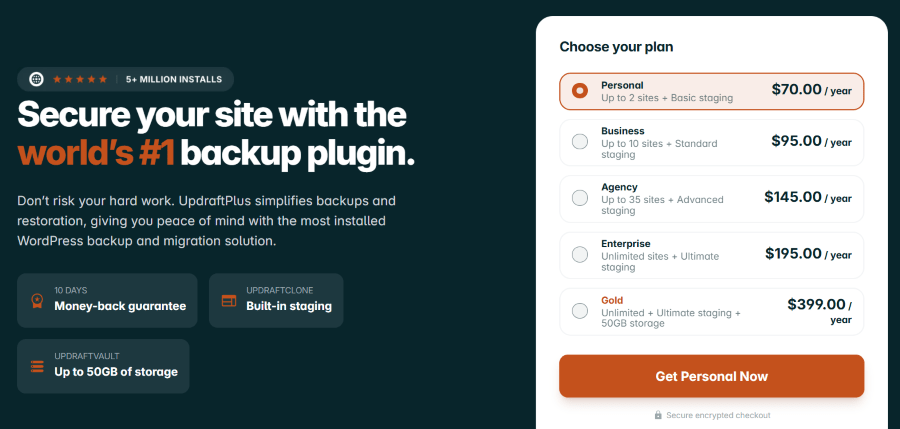
UpdraftPlus Premium currently lists:
- Personal: $70/year, up to 2 sites
- Business: $95/year, up to 10 sites
- Agency: $145/year, up to 35 sites
- Enterprise: $195/year, unlimited sites
- Gold: $399/year, unlimited sites with 50GB storage and UpdraftCentral management
UpdraftPlus also has a free version with backup and migration functions, although direct site-to-site migration and other advanced migration controls are Premium features.
UpdraftPlus Pros and Cons
Pros
- Strong backup and restore system
- Direct migration in Premium
- Selective migration
- Incremental backups
- Multisite support
Cons
- Some important migration functions are limited to Premium
- The large number of backup options can take time to configure
For Whom UpdraftPlus Is Built For
UpdraftPlus is a strong option for site owners who want migration as part of a wider backup strategy. It is also useful for agencies and developers managing several websites because the higher plans cover multiple sites and include more advanced staging and migration capabilities.
4. All-in-One WP Migration
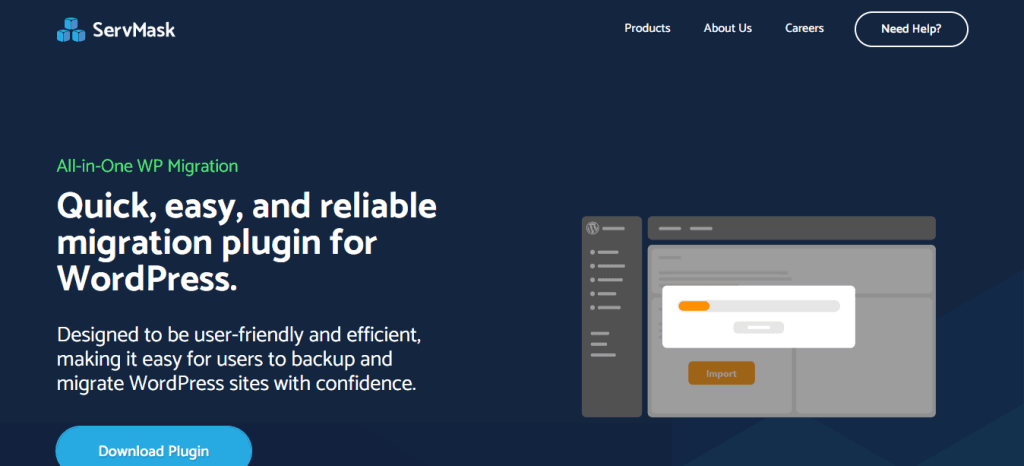
All-in-One WP Migration from ServMask focuses on making WordPress transfers simple. The plugin exports a website into a single WPRESS archive and lets you import that package into another WordPress installation. The company positions the product around a simple export and import workflow rather than a complicated migration process.
The plugin can also be extended for larger transfers, cloud backups, automation, and Multisite. The Pro offering adds cloud storage connections and scheduled backups, while the Unlimited Extension is designed to remove upload limitations imposed by the hosting environment.
All-in-One WP Migration Key Features
- WPRESS Archive: Export the WordPress site into a single archive that can be imported into another site.
- Drag-and-Drop Import: Importing a backup is handled through a simple drag-and-drop workflow.
- Automatic Backup Copy: An exported website is also saved as a backup.
- Cloud Storage: Pro supports services including Google Drive, Dropbox, OneDrive, Amazon S3, WebDAV, pCloud, and other storage destinations.
- Scheduled Backups: Pro supports backup scheduling at intervals ranging from every 15 minutes to monthly schedules.
- WP-CLI Support: The Pro product provides command-line support for users who want to automate tasks.
All-in-One WP Migration Pricing
ServMask currently lists:
- Free All-in-One WP Migration plugin: Free
- Unlimited Extension: From $69/year
- All-in-One WP Migration Pro: From $99/year, including the Unlimited Extension
- Multisite Extension: From $319/year, including the Unlimited Extension
All-in-One WP Migration Pros and Cons
Pros
- Simple export and import process
- Easy-to-handle WPRESS package format
- Cloud storage options through Pro
- Extensions for larger migrations
- Multisite support through a dedicated extension
Cons
- Larger migrations may require a paid extension
- Multisite functionality is not part of the basic plugin
For Whom All-in-One WP Migration Is Built For
This plugin is a good fit for beginners, freelancers, and business owners who prefer a simple migration workflow. It also suits users who frequently move complete WordPress sites and do not want a long list of migration settings.
5. BlogVault
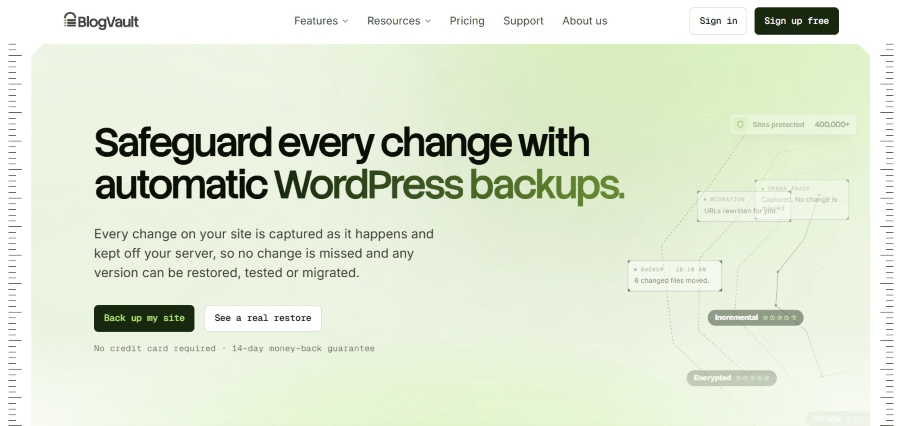
BlogVault takes a different approach from a traditional migration-only plugin. Its WordPress service combines backups, restores, staging, and migration in an off-site system. Migrations can move a site to a new host or domain while the original site stays live during the transfer.
The service also focuses heavily on recovery. It can test restores on temporary copies, perform selective restores, and use an Emergency Connector when a WordPress installation is not functioning normally. For WooCommerce and Multisite sites, it provides additional recovery and migration controls.
BlogVault Key Features
- One-Click Migration: Move a WordPress site to a new host or domain without relying on a long manual migration process.
- Off-Site Backups: Backup data is stored away from the main hosting environment.
- Test Restore: Restore points can be tested on a temporary copy before changes reach the live site.
- Selective Restore: Restore a specific file, database table, plugin, or subsite instead of replacing the entire installation.
- Staging: BlogVault can create a private copy where site changes can be tested before going live.
- Multisite Migration: The service can migrate an entire network and supports subsite-level recovery.
BlogVault Pricing
BlogVault currently lists three main plans:
- Personal: $99/year
- Business: $299/year
- WooCommerce: $499/year
The pricing page has also displayed promotional discounts, so the amount shown at checkout may differ from the standard annual price.
BlogVault Pros and Cons
Pros
- Off-site backup infrastructure
- Migration and staging in one service
- Test restores
- Selective restoration
- WooCommerce and Multisite support
Cons
- Higher starting price than free migration plugins
- Some users may not need its wider backup and staging features
For Whom BlogVault Is Built For
BlogVault is aimed at businesses, agencies, WooCommerce store owners, and professionals who need migration alongside ongoing backup and recovery. It is especially relevant when protecting a live business site is just as important as moving it.
6. WPvivid
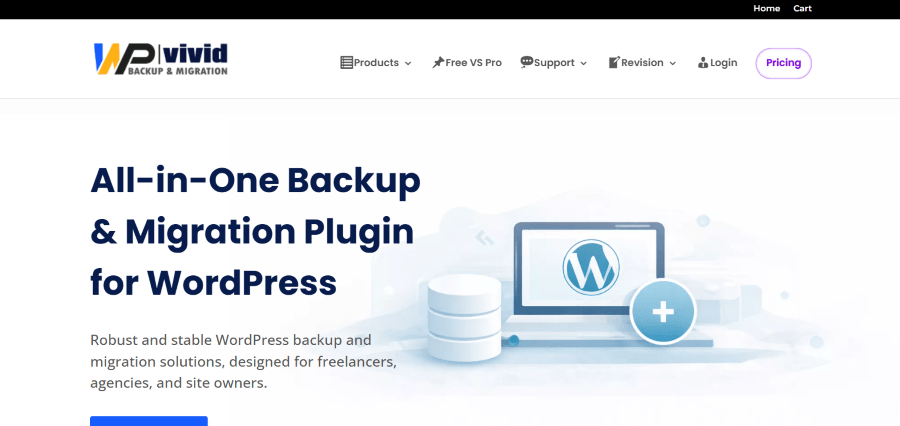
WPvivid combines WordPress backup, migration, restore, and staging tools in one system. Its migration workflow can export a site to a server, remote storage, or the target site itself, with an auto-migration option to move directly to another website.
The plugin also gives users control over backup contents and retention. Its Pro version adds incremental backups, selective backup rules, non-WordPress files, external databases, advanced retention, staging, white labeling, and role-based controls.
WPvivid Key Features
- Auto Migration: Export and import workflows can be connected directly to a target site for migration.
- Include and Exclude Rules: Select files, folders, and database tables to include or exclude from backups.
- Cloud Storage: WPvivid supports Google Drive, Dropbox, OneDrive, Amazon S3, FTP, SFTP, Wasabi, pCloud, WebDAV, Backblaze, and other services.
- Backup Before Updates: The plugin can automatically back up WordPress core files, themes, and plugins before updates.
- Staging: Pro provides staging tools for testing changes before pushing them to the live website.
- Multisite Support: WPvivid can migrate complete multisite networks and can also move a subsite into a standalone WordPress installation.
WPvivid Pricing
WPvivid lists the following regular annual plans:
- Blogger: $49/year
- Freelancer: $69/year
- Small Business: $99/year
- Ultimate: $149/year
Lifetime pricing is also listed at $99, $139, $199, and $299, respectively.
WPvivid Pros and Cons
Pros
- Free backup and migration version
- Auto-migration workflow
- Broad cloud storage support
- Staging and multisite options
- Flexible backup controls
Cons
- Some advanced tools require Pro
- The wider feature set may feel more complex than a migration-only plugin
For Whom WPvivid Is Built For
WPvivid works well for freelancers, agencies, and site owners who want migration, backup, staging, and cloud storage under one dashboard. It is also useful for professionals who manage several WordPress installations.
Why Use a WordPress Migration Plugin?
A manual WordPress migration means working with the website’s files and database, then checking configuration and URLs after the move. WordPress documentation describes both the database and site files as key parts of a complete website backup, which shows why copying only one part of a site is not enough.
A migration plugin brings those pieces into a more controlled workflow. Depending on the product, it can create a complete copy, rewrite URLs, transfer the database, move uploads, keep a restore point, or test a staging copy before the final switch.
The main benefit isn’t speed. It is reducing the number of manual steps where something can be missed.
What Happens When You Migrate Without the Right Tool?
A migration performed without a suitable workflow can leave broken links, missing media, incorrect database values, or an incomplete site. URL changes can also affect serialized data, which is why many migration products include automated search-and-replace or URL-rewriting tools.
There is also a recovery issue. If the original site changes during a migration and the transfer fails, you need a reliable backup or rollback point. Tools such as FastMigrate, Duplicator, UpdraftPlus, BlogVault, and WPvivid include different forms of rollback, restore, or recovery workflows.
For a business website, the implication is practical: the right migration tool can reduce manual work and provide a clearer recovery path, while skipping that protection can make the migration process more dependent on manual checks.
Best WordPress Migration Plugins: Final Comparison
| Plugin | Best Suited To | Key Strength | Main Limitation |
| FastMigrate | Direct host-to-host moves | Direct server-to-server transfer | No Multisite |
| Duplicator | Developers, agencies, complex migrations | Migration plus advanced backup tools | Premium needed for advanced features |
| UpdraftPlus | Backup-focused site owners | Backup, restore, and selective migration | Direct migration is a Premium feature |
| All-in-One WP Migration | Simple site transfers | Easy WPRESS export and import | Larger transfers may require paid extensions |
| BlogVault | Business and WooCommerce sites | Managed backup, staging, restore, and migration | Higher entry price |
| WPvivid | Freelancers and multi-site managers | Backup, migration, cloud storage, and staging | Advanced features can require Pro |
Final Thoughts
The best WordPress migration plugins do more than move files from one server to another. They help turn a risky manual process into a repeatable workflow with backup, restore, URL handling, and recovery options.
FastMigrate focuses on direct server-to-server movement. Duplicator adds extensive migration and backup controls. UpdraftPlus combines migration with a mature backup system. All-in-One WP Migration keeps the process simple with its WPRESS archive. BlogVault adds managed off-site protection and staging, while WPvivid combines migration with broader backup and site management features.
Before moving a live website, create a current backup and check the destination environment. WordPress itself recommends backing up the site’s files and database before a move, making that step the foundation of any migration workflow.